
Why Grainy Photos Have Large File Sizes (And How to Fix It)
Adding grain to photos often creates huge files. Learn why this happens and how to add grain while keeping file sizes small.
Published 2026-03-18 · Updated July 17, 2026 · Written and tested by Maximilian Braun
You add a grain effect to a 2MB photo and suddenly it is 15MB. This is one of the most common frustrations with grain tools - but it is not a mystery. Understanding why it happens gives you the tools to fix it.
Why compression hates noise
Lossy encoders such as JPEG and WebP generally represent smooth or predictable regions efficiently. Fine, irregular variation introduces more high-frequency detail, so the encoder may need more data at the same quality target or may smooth away some texture. The outcome depends on the image, encoder, format, dimensions, and quality setting.
The problem with most grain tools
Many basic noise effects vary pixels independently. That high-frequency variation gives an encoder fewer smooth or repeating regions to represent efficiently, so an export can grow sharply. The exact increase depends on the source image, resolution, noise settings, encoder, format, and quality; a single before-and-after file-size claim should never be treated as universal.
How physical film grain is different
Physical film grain is an optical texture produced by the emulsion and development process, not a one-value-per-digital-pixel effect. A digital approximation can use larger, correlated structures to avoid the harshest independent-pixel pattern. That does not make the simulation chemically accurate, but it can make the texture more visually coherent and easier for a lossy encoder to represent.
The fix: compression-friendly grain
imagegrain creates spatially correlated digital texture from seeded random values: the default organic model blurs them into irregular clumps, and the classic model used for this article's measurements interpolates between random sample points. It is an analog-inspired approximation, not a physical film simulation. Nearby values share some structure, which can be easier for a lossy encoder to represent than fully independent pixel noise, although actual export size still depends on the complete image and encoder.
Real numbers from a real export
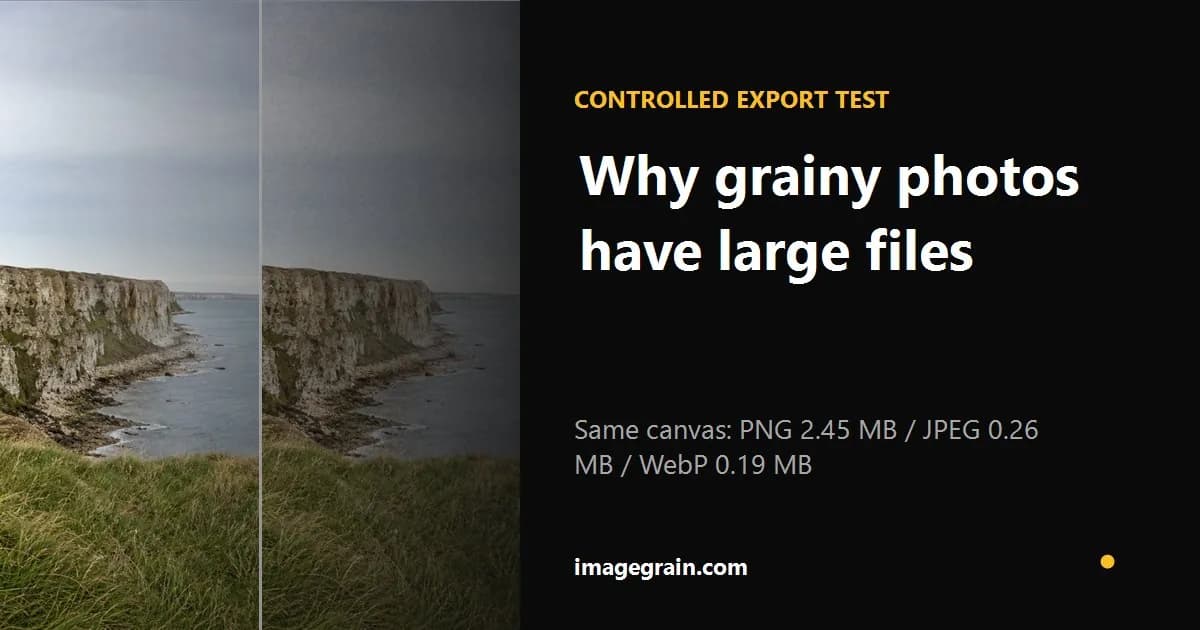
Measured with imagegrain's built-in 1600x1000 sample at 40% fine grain, the lossless PNG export is 2.45 MB, JPEG at 85% quality is 0.26 MB, and WebP at 85% quality is 0.19 MB. These figures compare different formats and are not a claim that one format always saves the same percentage. Image detail, dimensions, grain scale, browser encoder, format, and quality can change both the result and the ranking between formats.
To compare the formats using your own image, test JPEG, WebP, and PNG exports with the photo editor.
Other tips for smaller grainy photos
Export as JPEG or WebP instead of PNG - PNG cannot compress noise efficiently regardless of the grain algorithm. Use the quality slider to find the sweet spot between visual quality and file size. For social media, 80-85% quality is usually sufficient. Resize oversized images before adding grain - a 6000px wide photo does not need to be that large for Instagram.
Controlled sample export
| Format | Setting | Measured size |
|---|---|---|
| PNG | Lossless | 2.45 MB |
| JPEG | 85% quality | 0.26 MB |
| WebP | 85% quality | 0.19 MB |
Built-in 1600×1000 sample, fine grain at 40%. Results vary with browser, image detail, dimensions, and settings.
Sources and further reading
Method and disclosure
This guide is written and reviewed by imagegrain's developer. Settings are practical starting points, not exact film-stock measurements. Controlled file-size figures use the documented built-in sample and export settings.
Read the full methodologyReady to add grain to your photos?
Free, private, no sign-up required. Runs entirely in your browser.
Open Grain Filter